

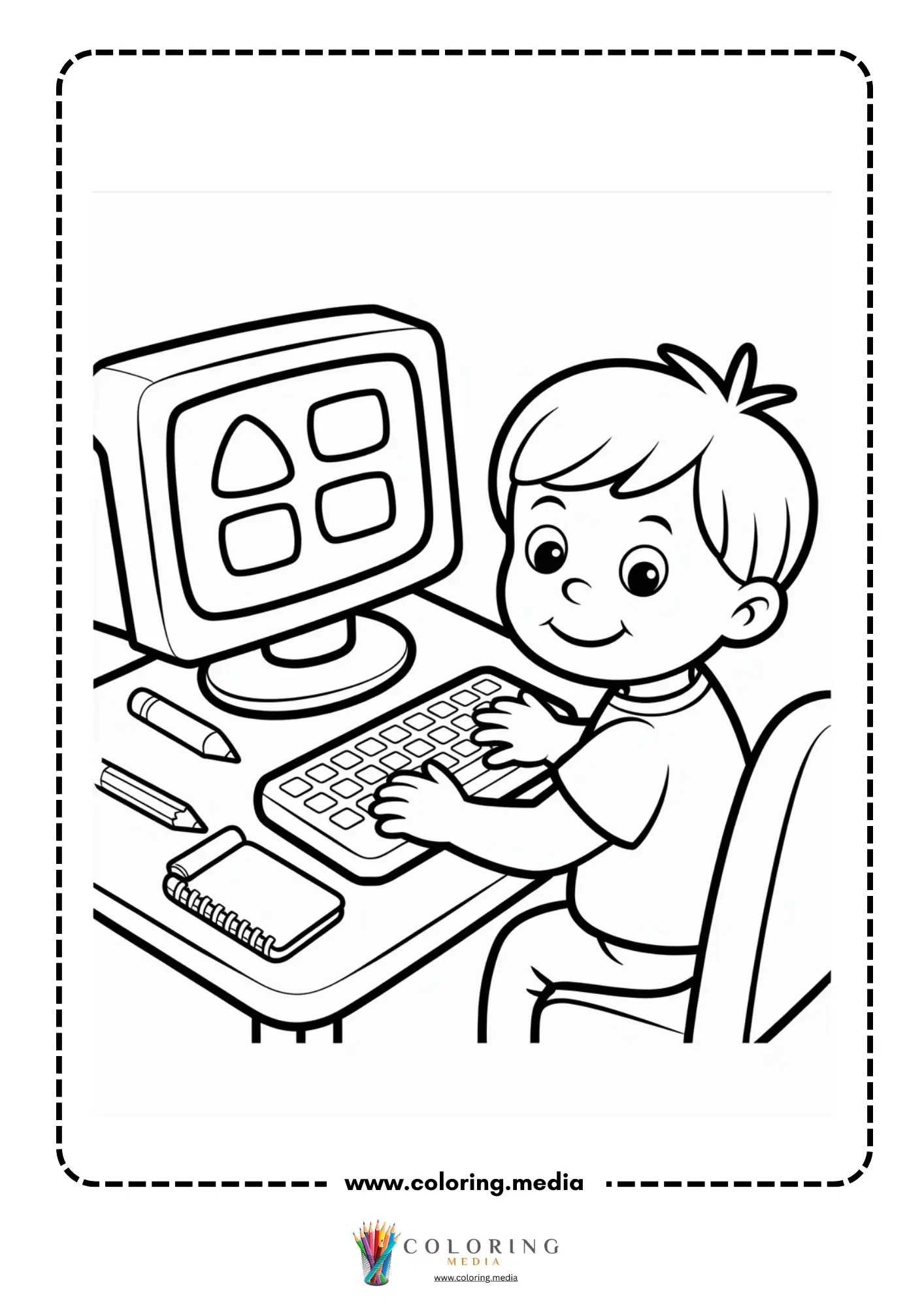
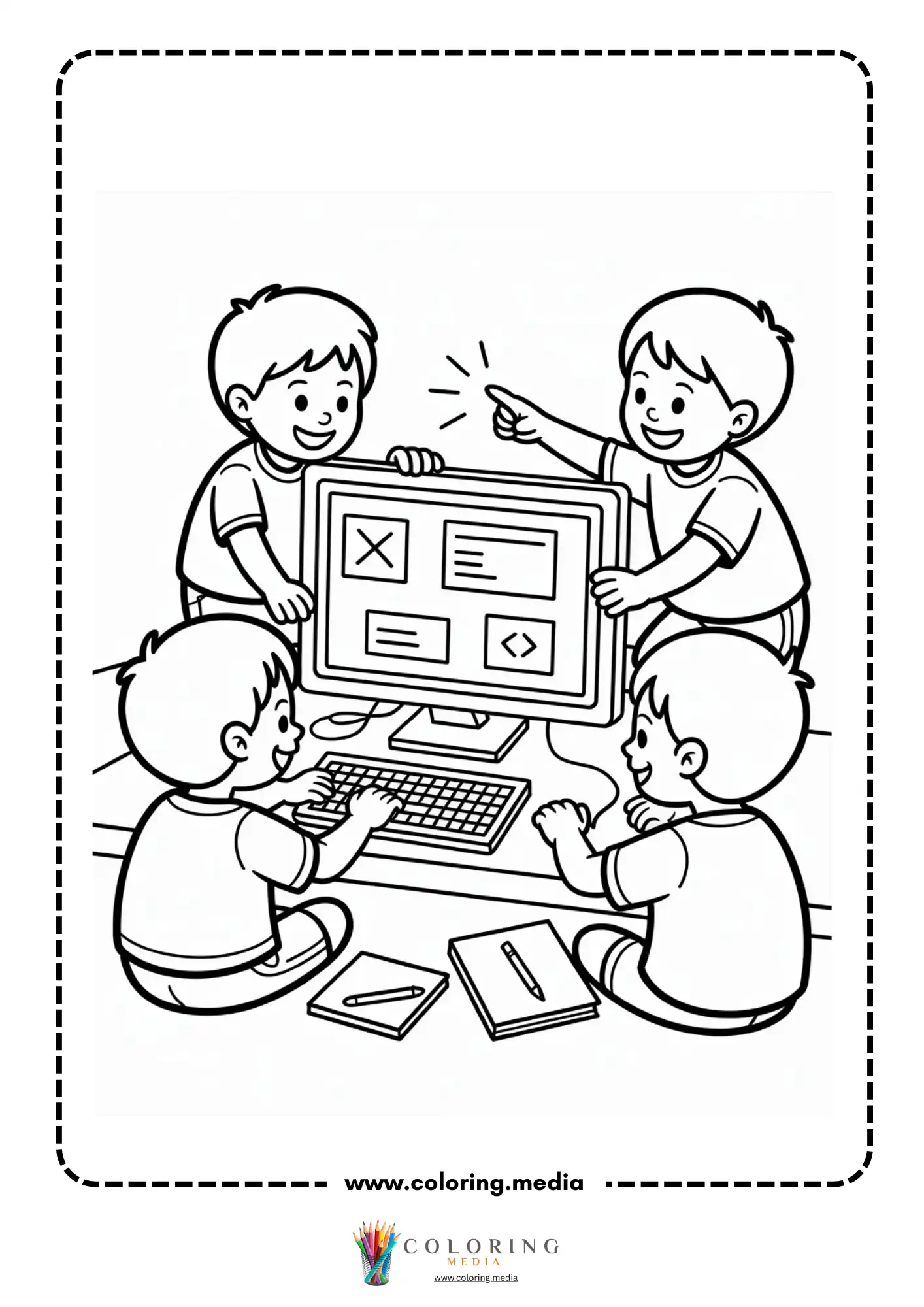
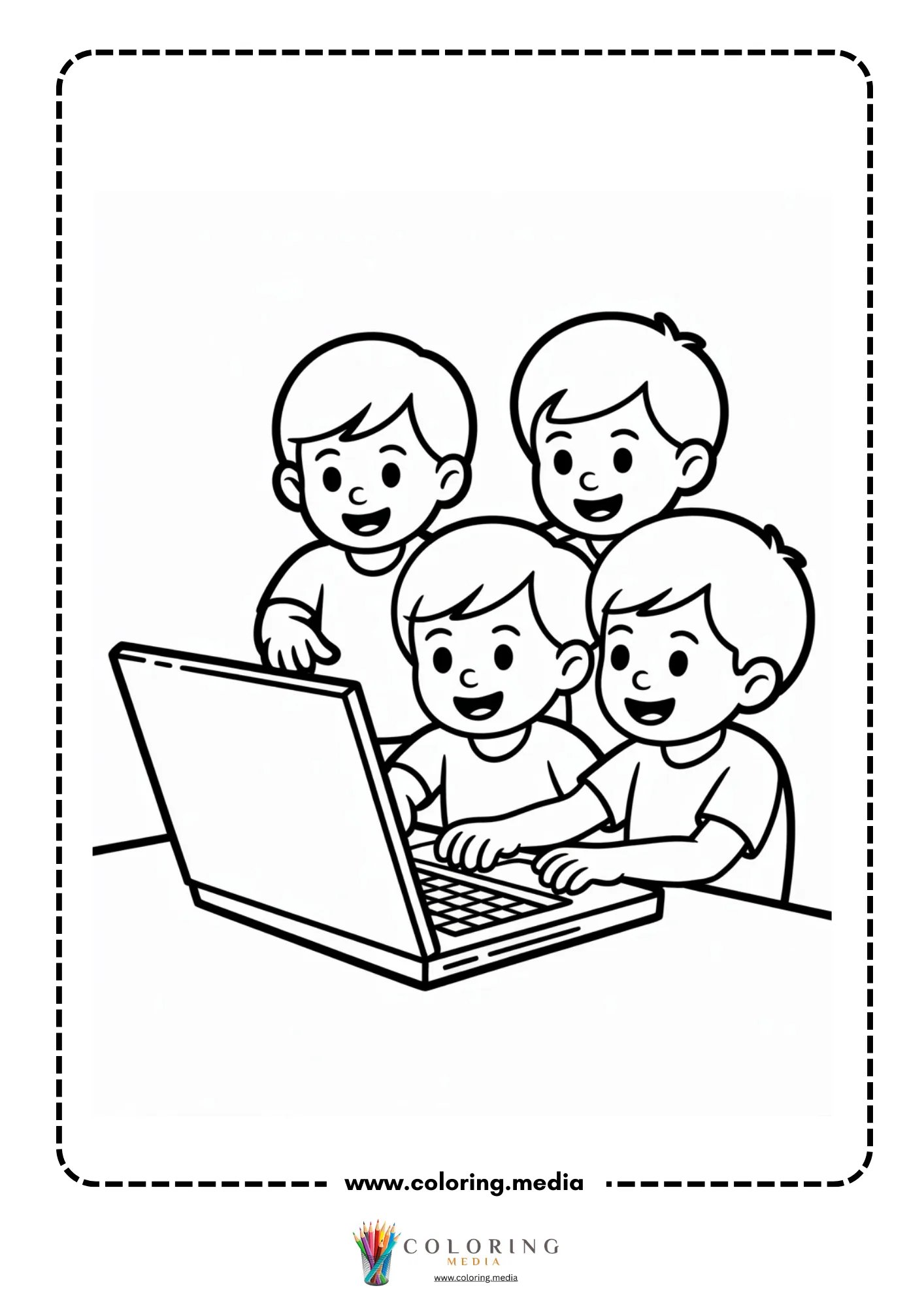
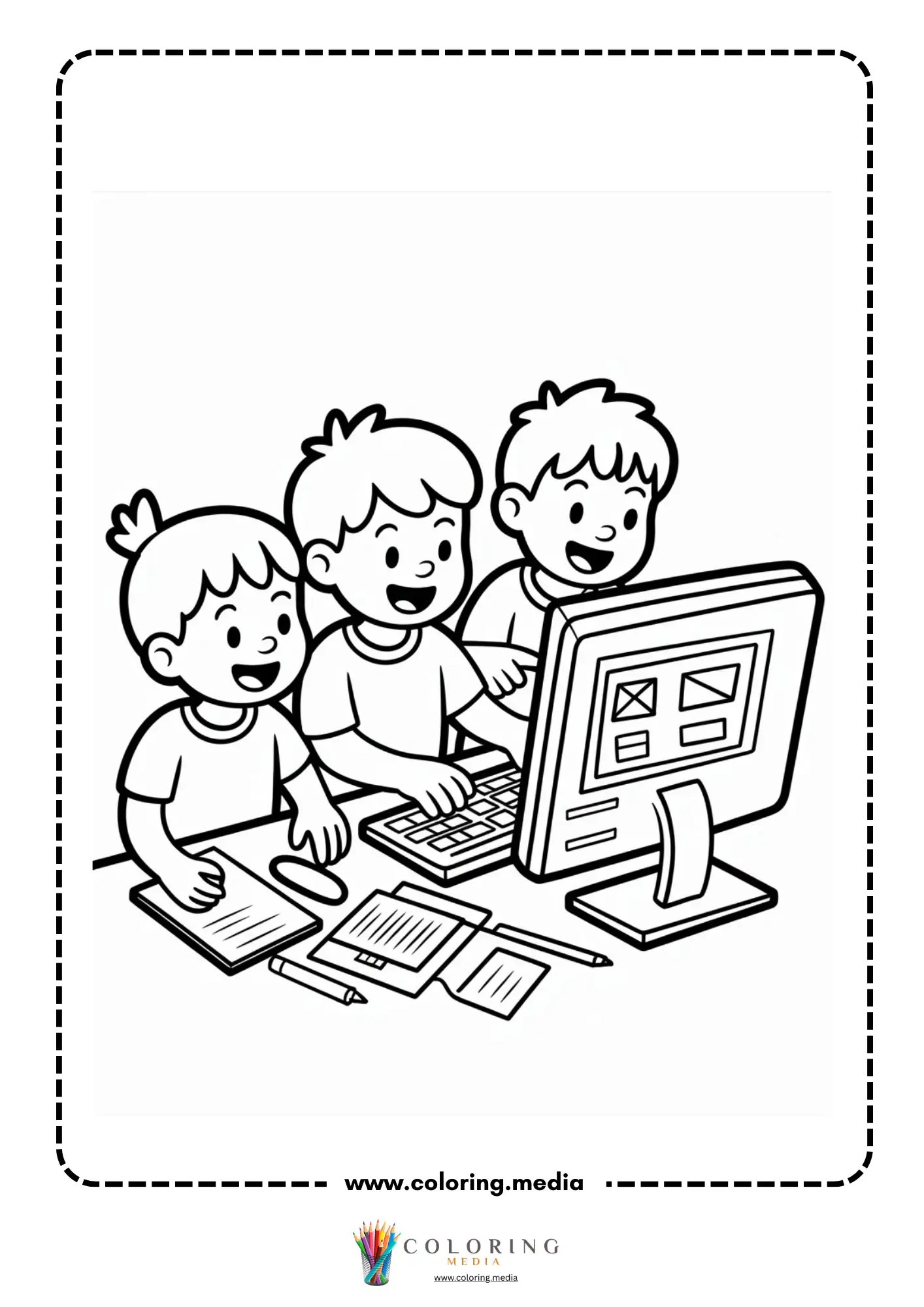
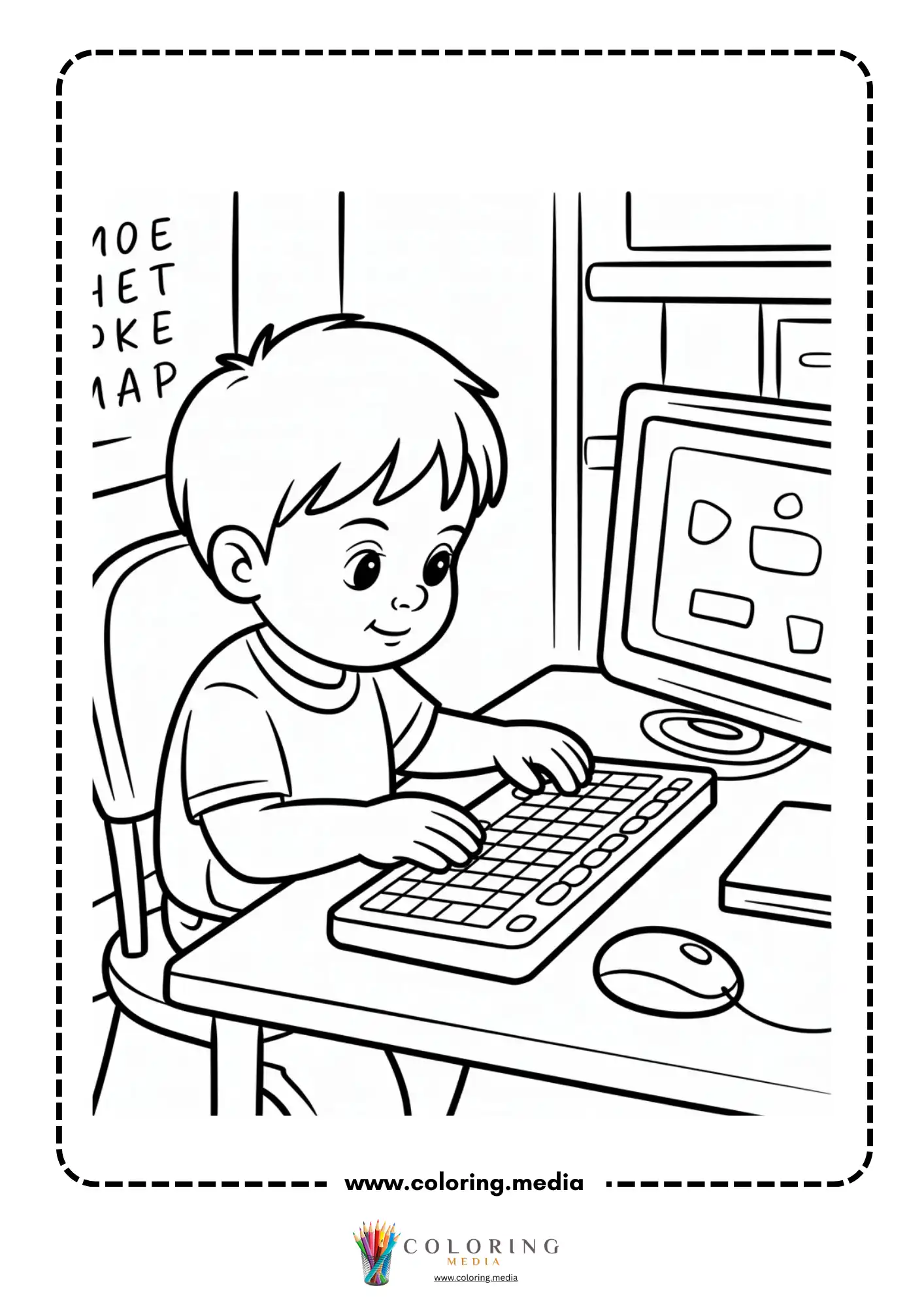
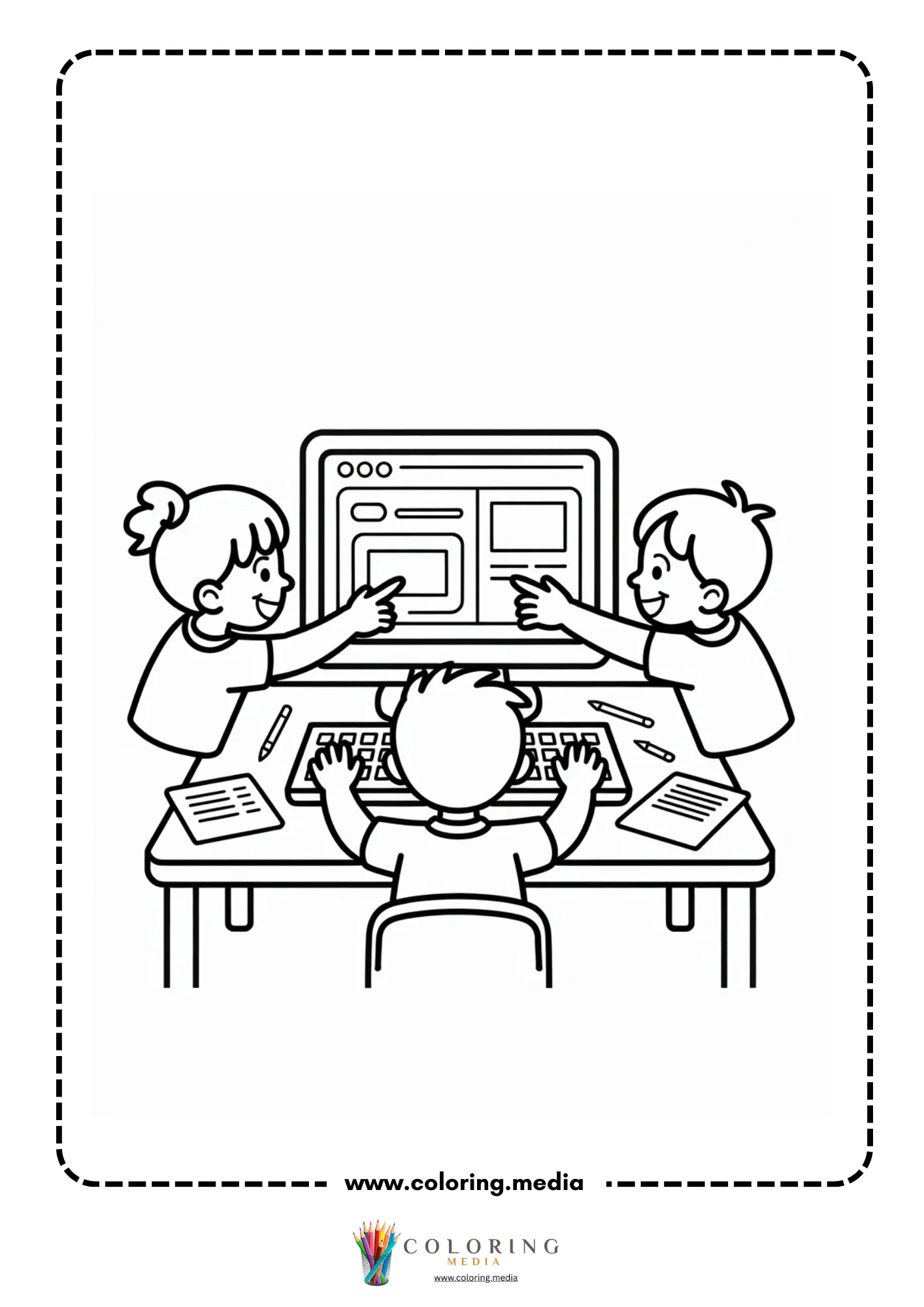
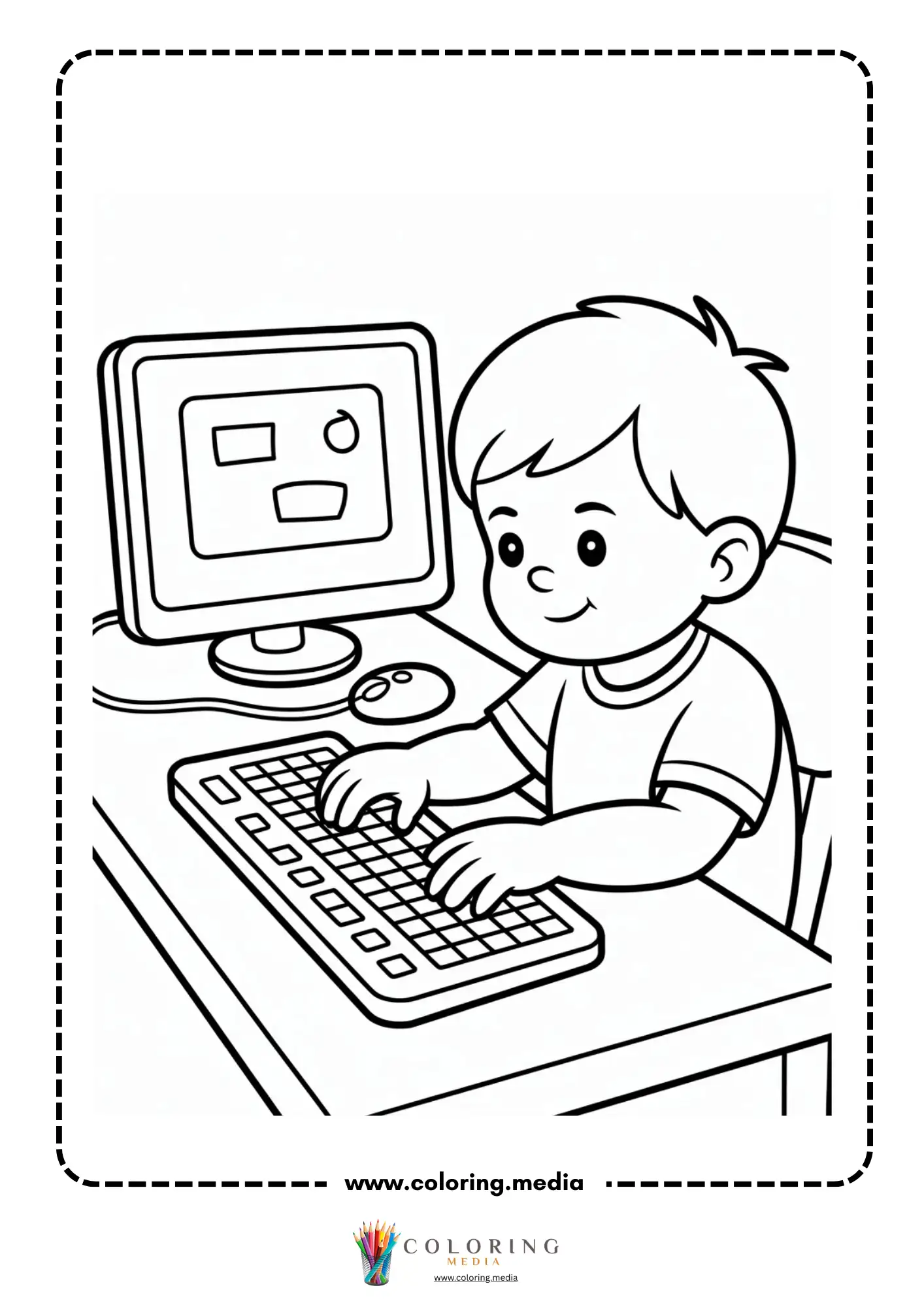
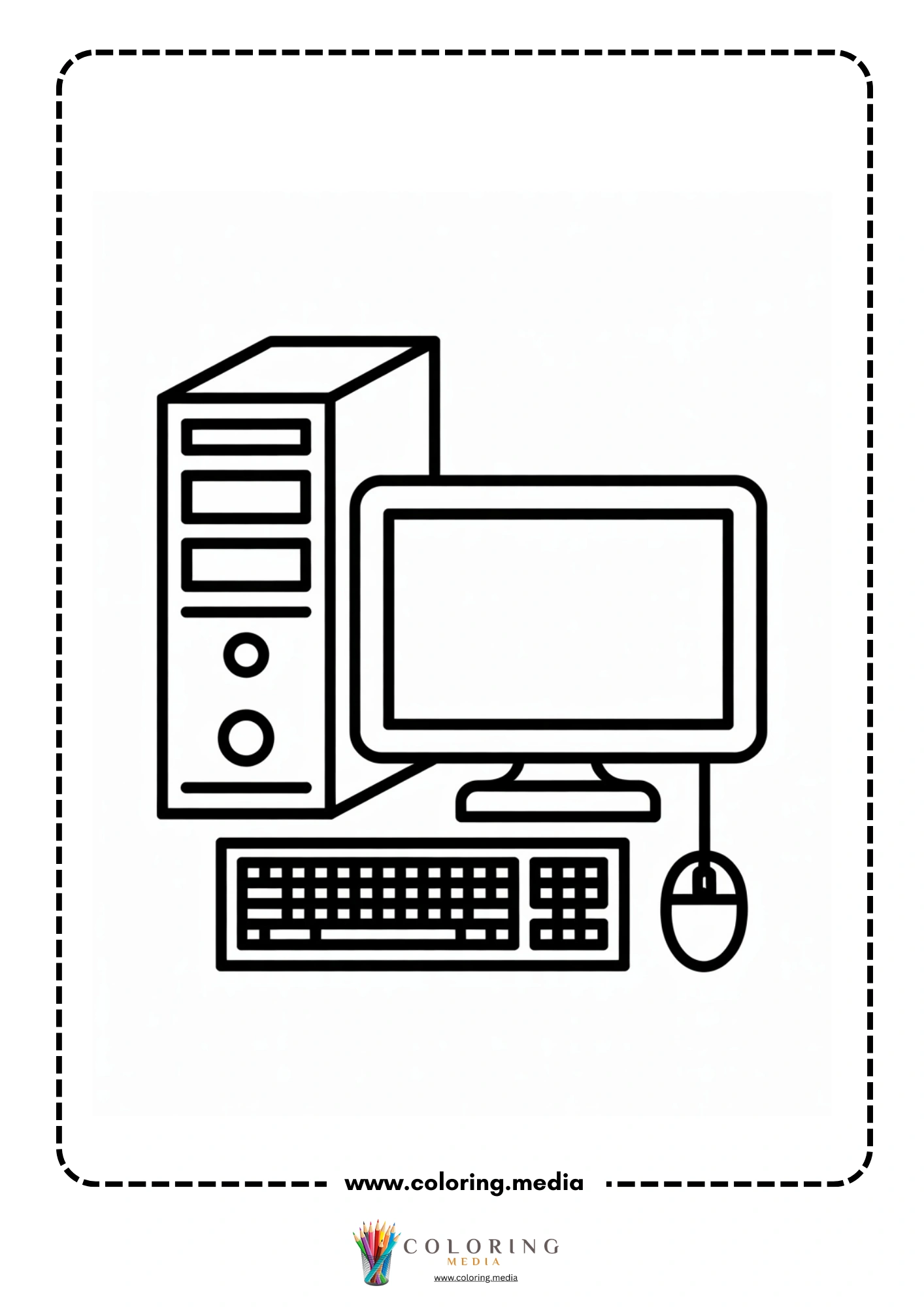
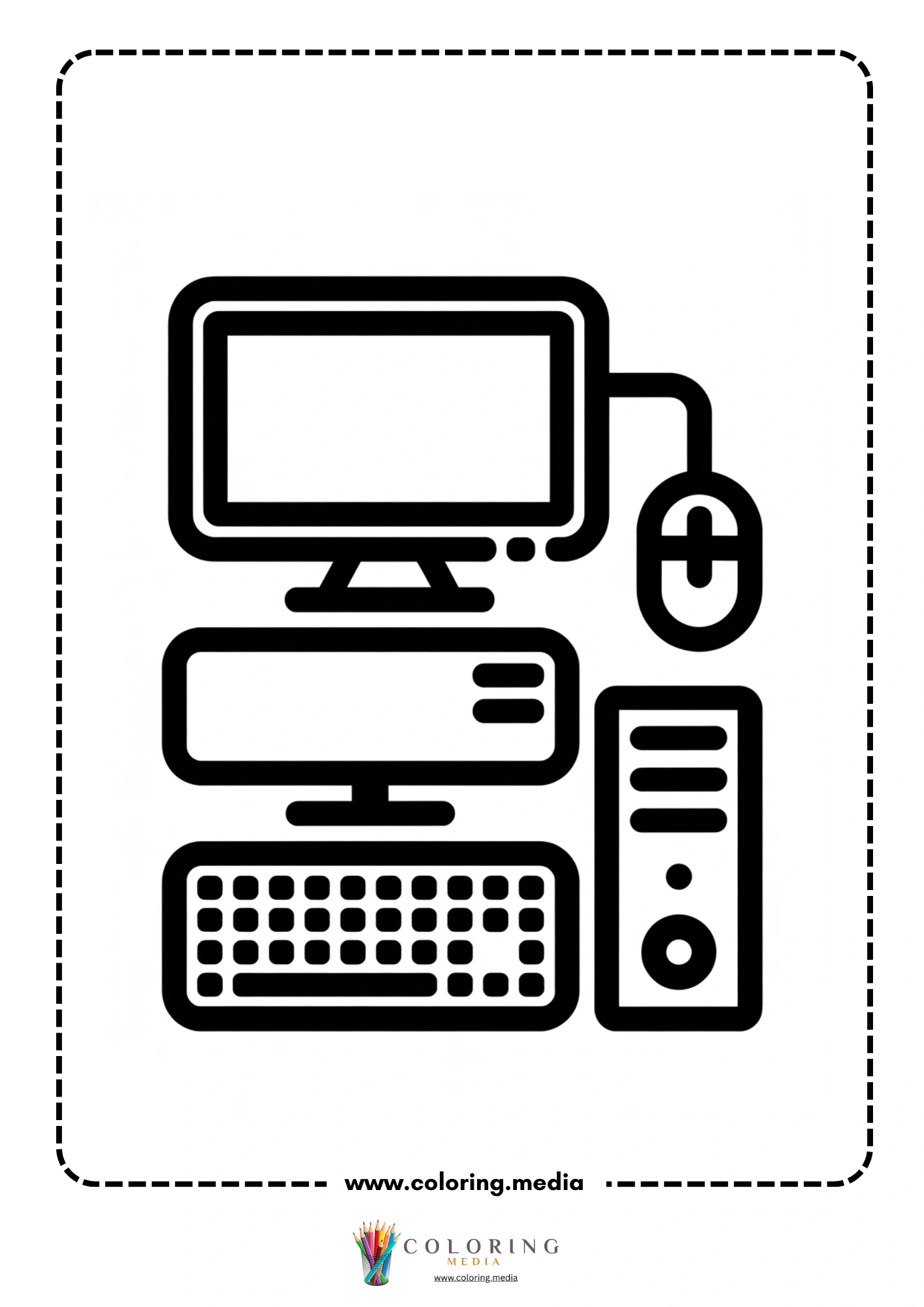
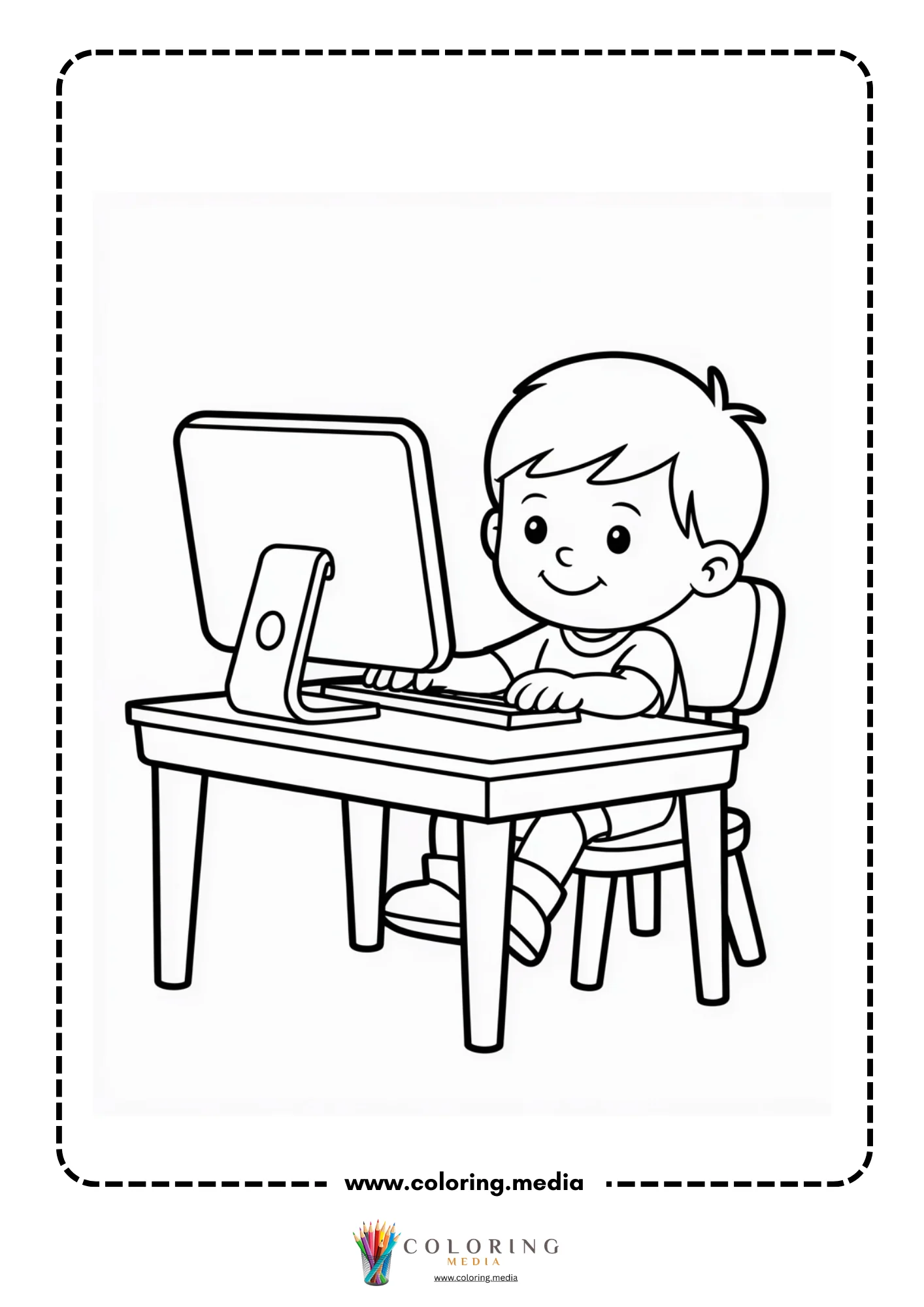
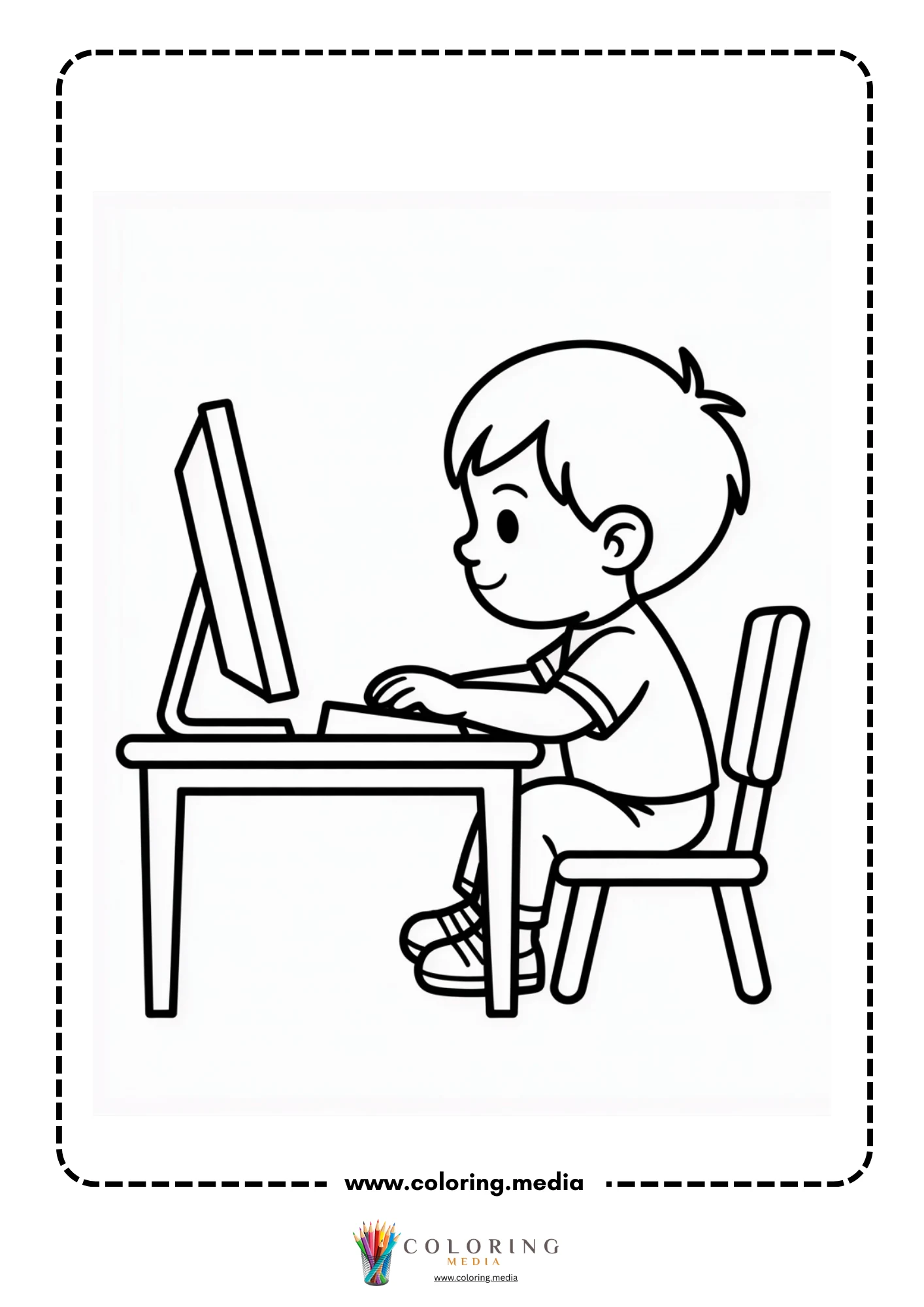
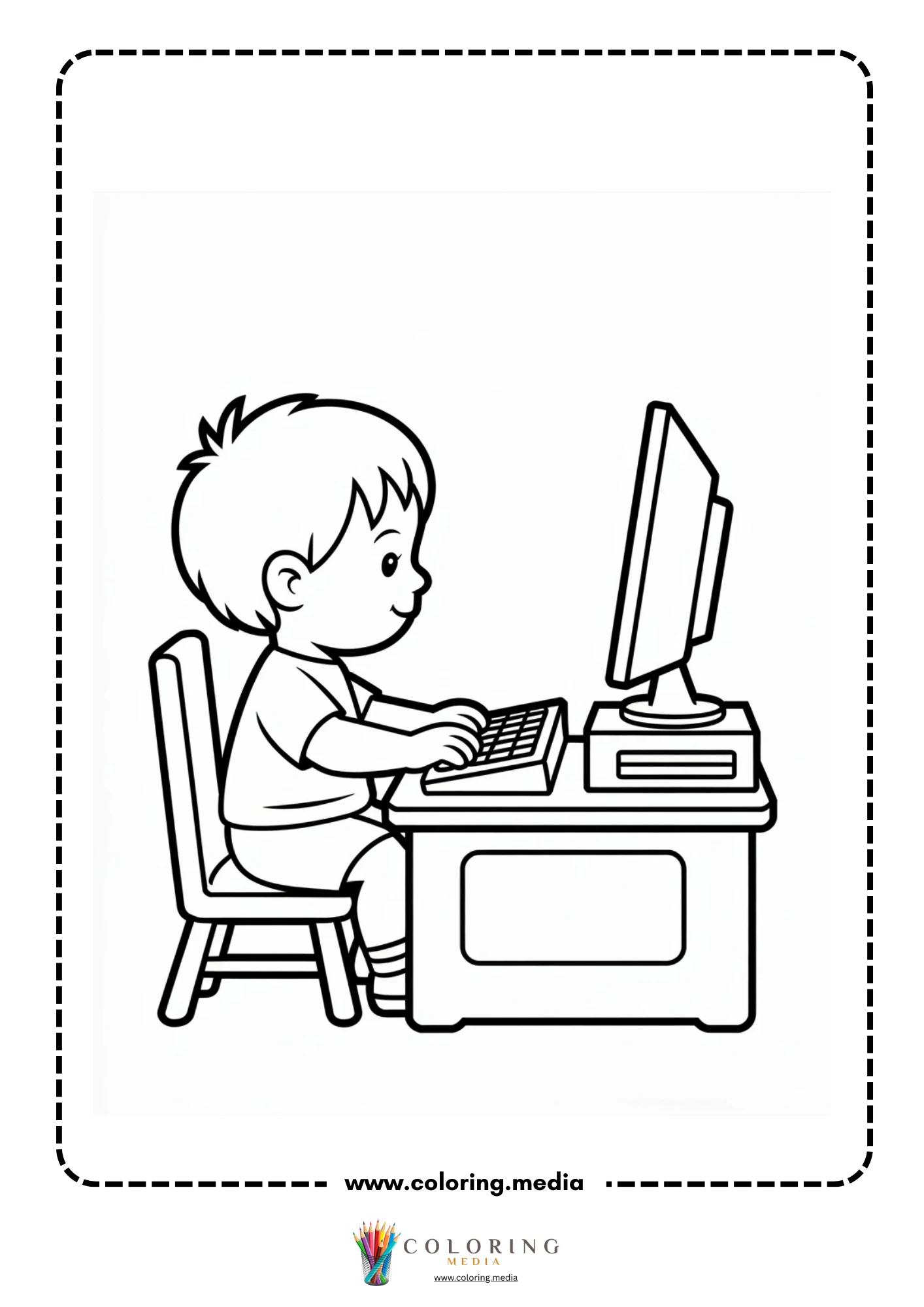
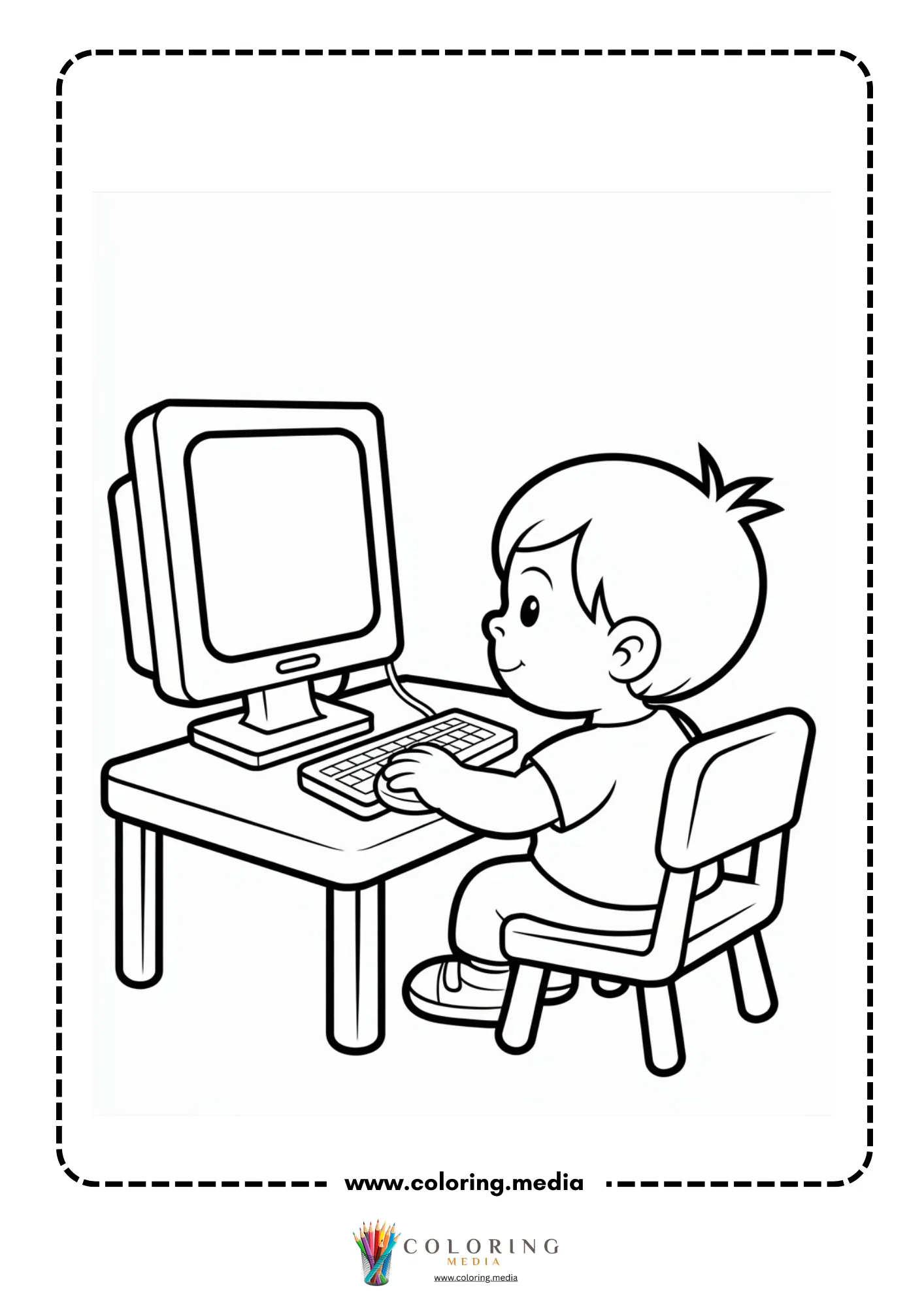
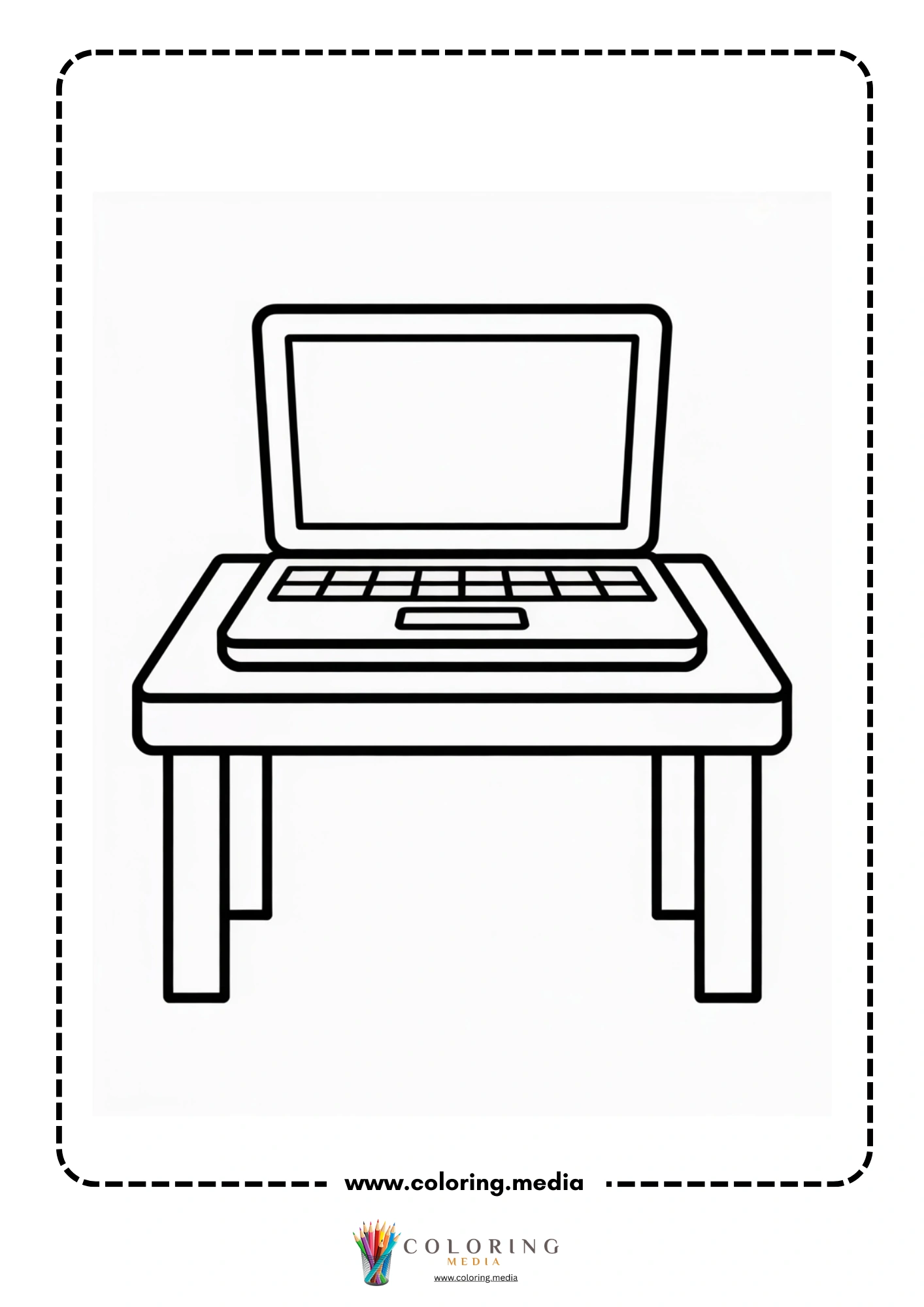
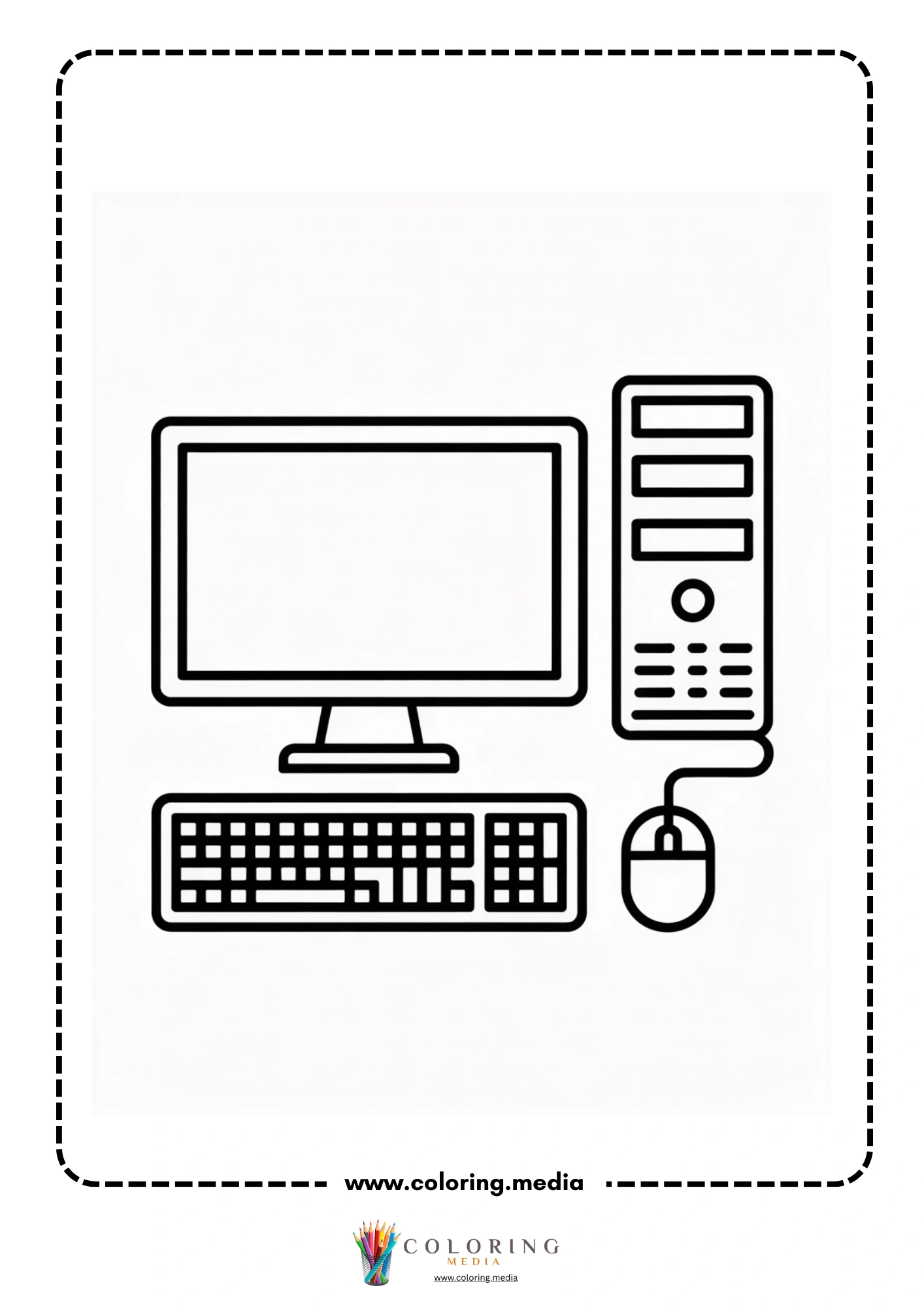
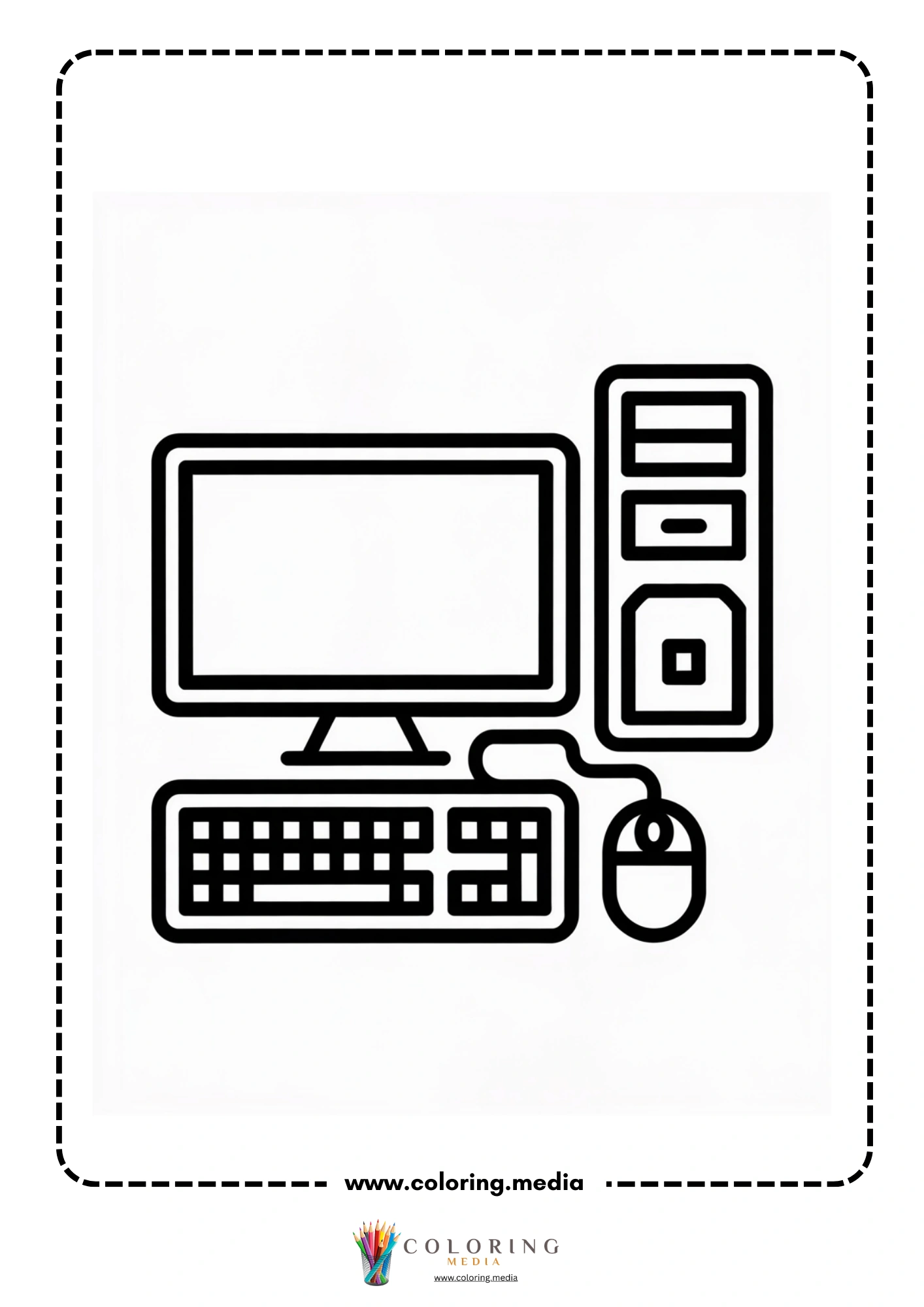
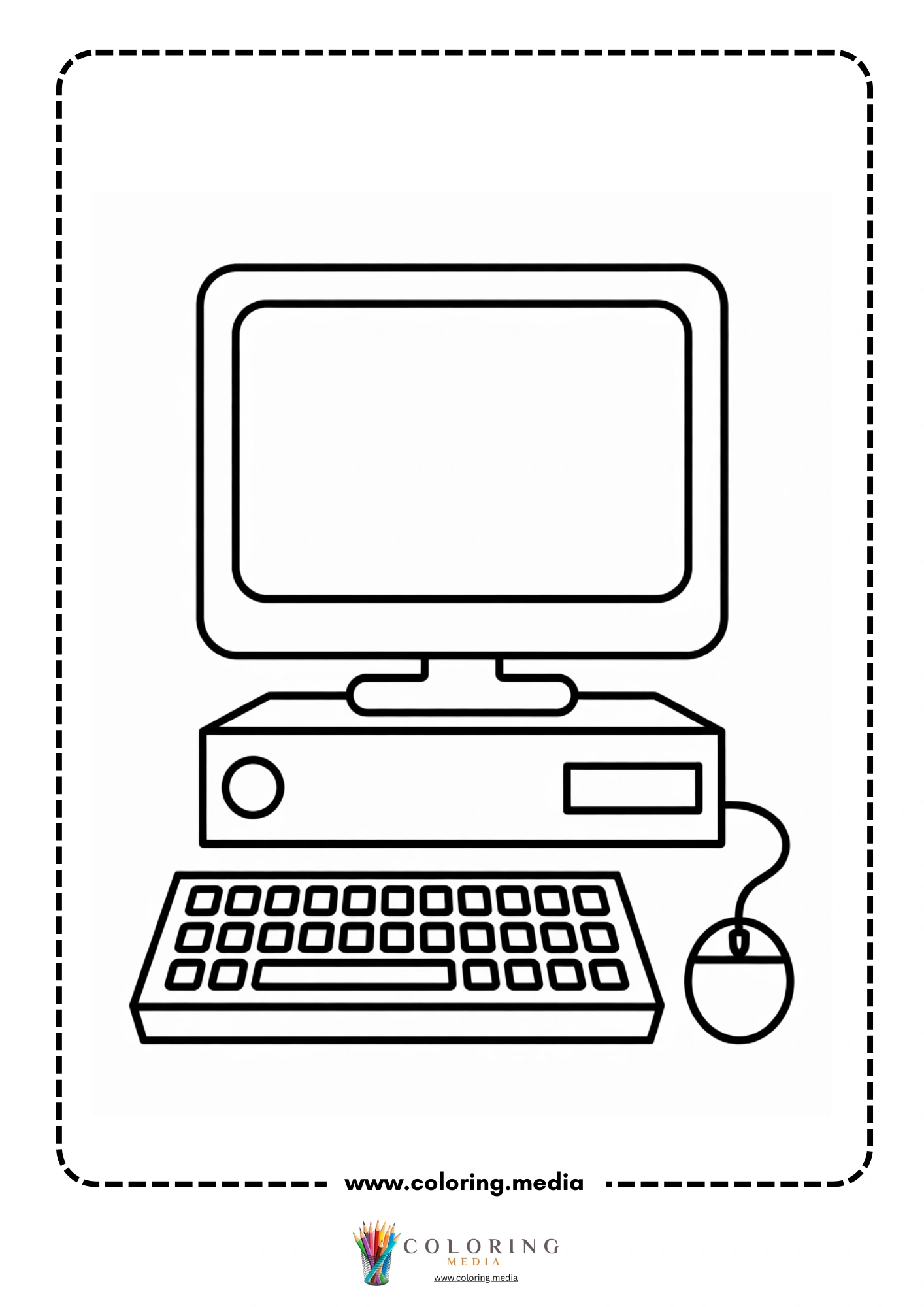
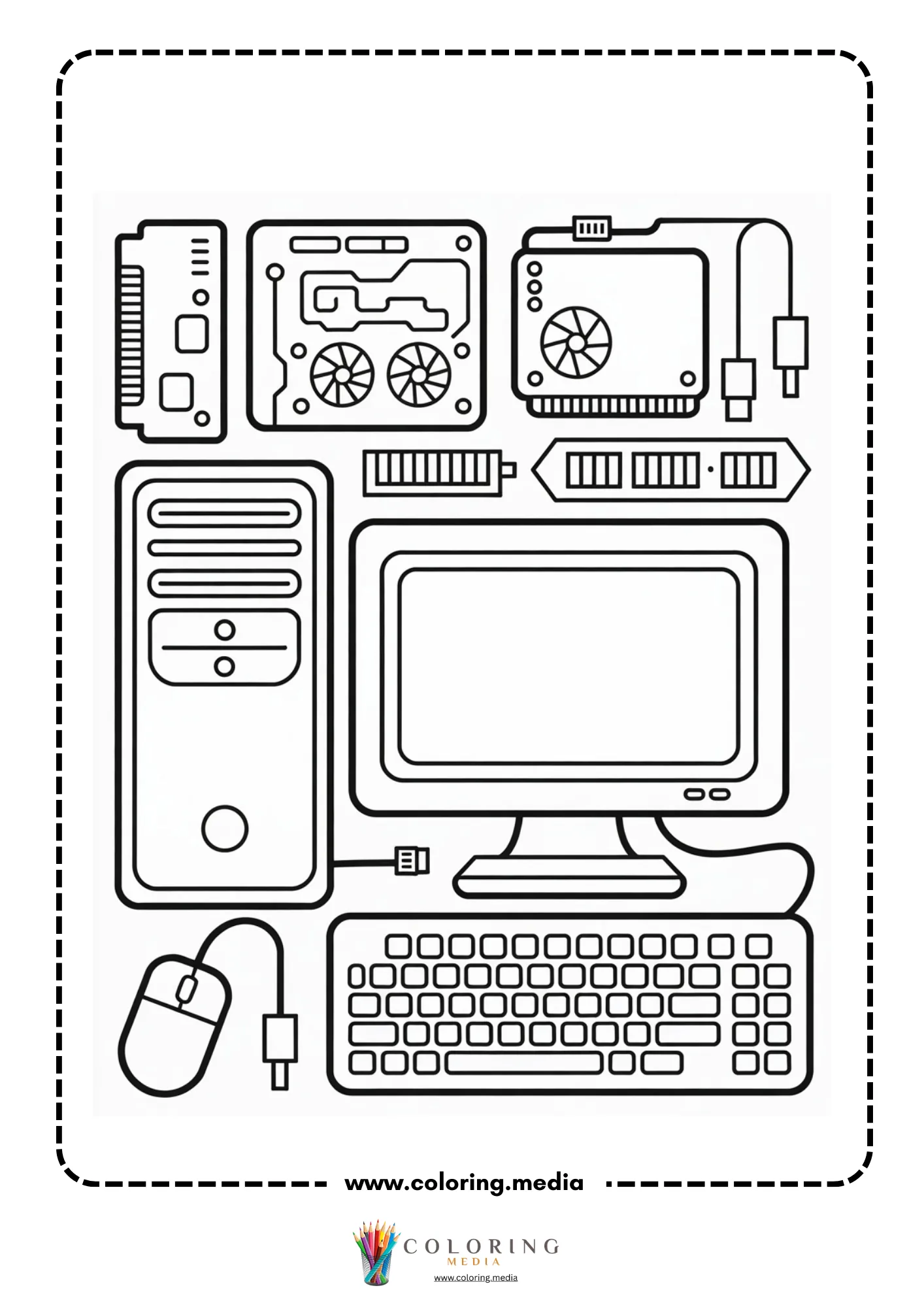
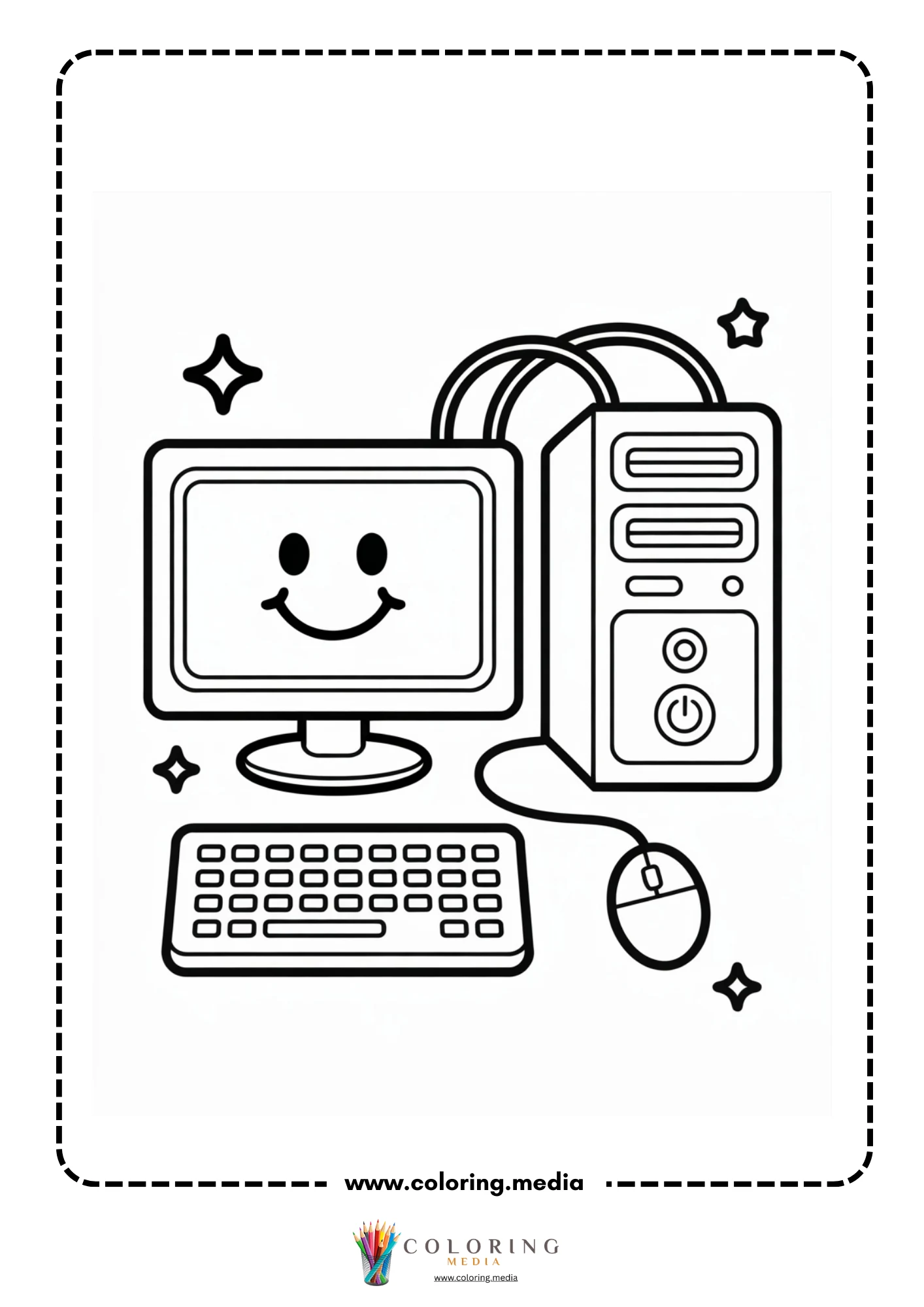
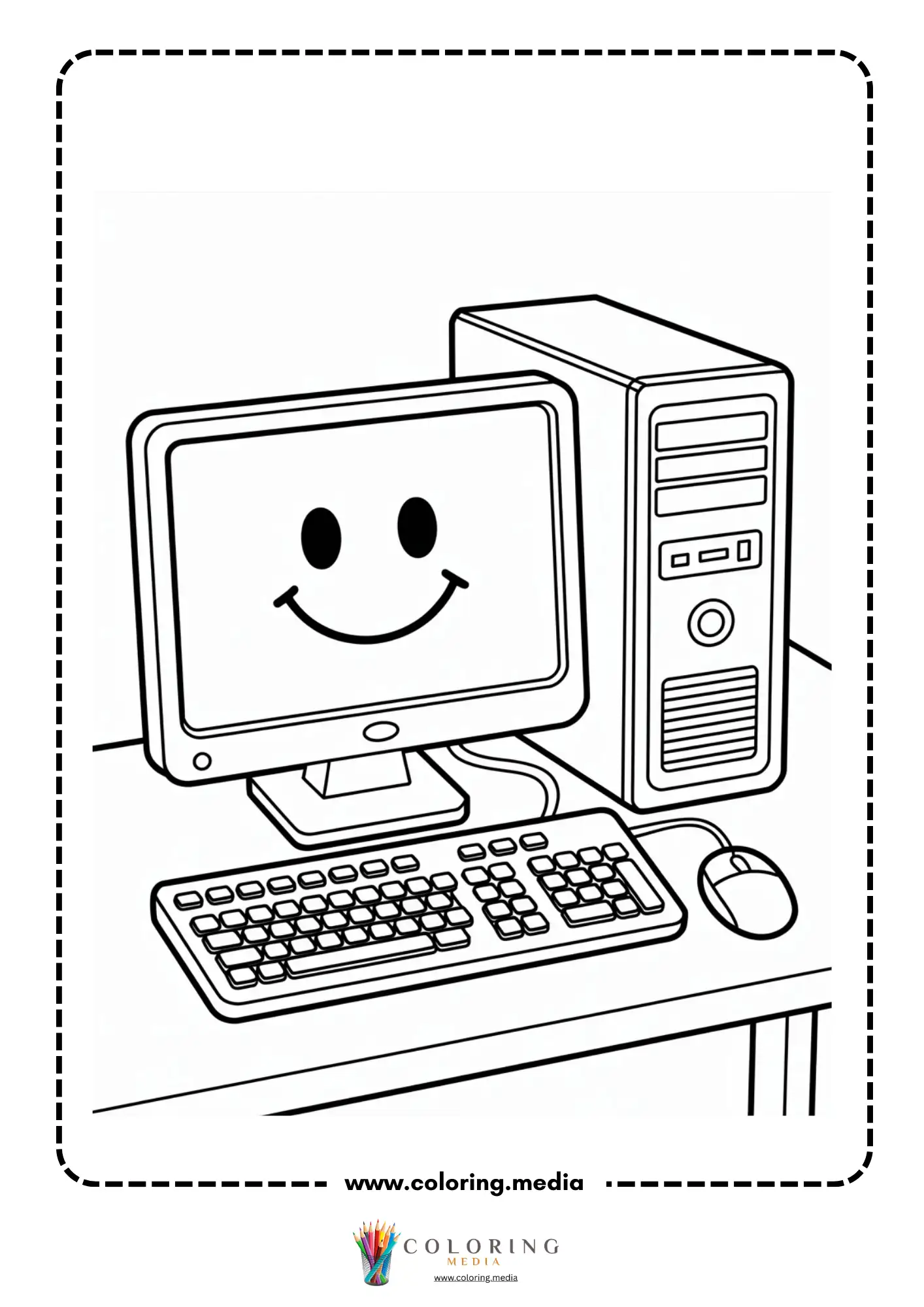
The pages here show computers as both objects and tools. Half the collection features isolated equipment illustrations — desktop towers with monitors, laptops open to various angles, keyboard-and-mouse setups, and a smiley-face desktop from an earlier visual era. The other half shows children using the equipment: a boy typing with focused attention, a group of children crowded around a monitor, a girl seated at a home desk. Both groups use the same clean cartoon line style, with 2–3mm outlines and consistent proportions throughout.
The split between object-focused and character-focused pages means the set is useful both as a standalone equipment reference and as a relatable character activity. Everything here is free to download and easy to print.
Free Printable Computer Coloring Pages
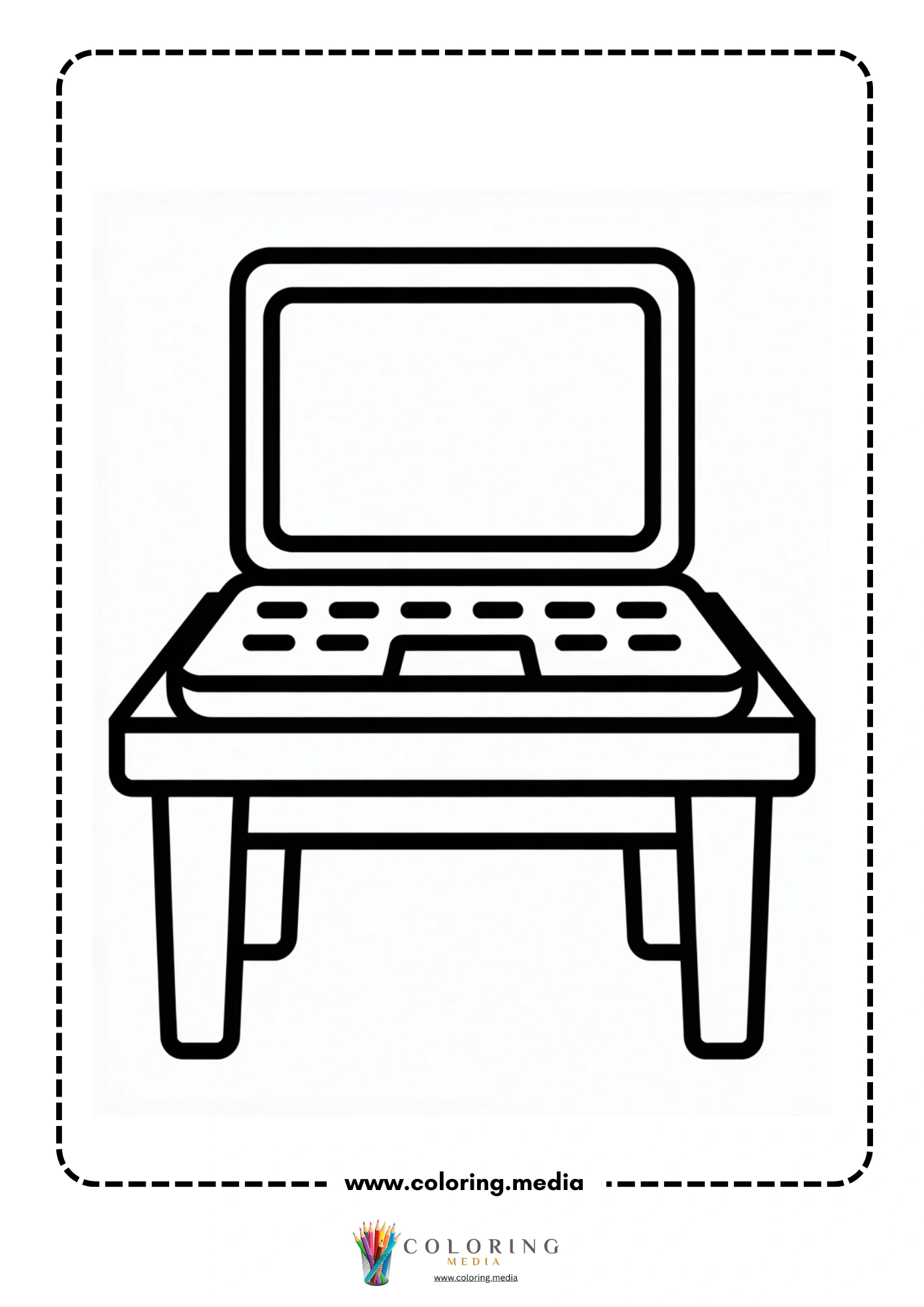
This collection includes 24 printable computer coloring pages featuring desktop computer setups with tower, monitor, keyboard, and mouse, standalone laptops in multiple open positions, children individually and in groups using desktop computers, close-up portraits of kids typing with visible expressions of concentration, a retro-style smiley-face monitor design, and a simple schematic-style monitor illustration. The range covers both equipment types and usage contexts across a variety of scene complexities. All pages print on A4 or US Letter paper.
Who Are These Computer Coloring Pages Best For?
Kindergarten-age children will connect most with the character pages showing a single child at a computer — the outline scale is right for crayon coloring, the subject is recognizable, and the human figure gives them something to color beyond just a box with a screen. These pages work well as an opener for a discussion about what computers are used for.
Early elementary students (grades 1–3) can handle the full range. The isolated equipment pages — tower, laptop, monitor — have enough structural detail (keyboard rows, monitor bezels, ventilation slots) to be genuinely interesting for a second or third grader to color carefully. These also work as a visual vocabulary exercise: label each component after coloring.
Any classroom working on digital literacy, technology basics, or computer science fundamentals can use these pages as a concrete visual anchor. Coloring a desktop setup while discussing the function of each part — input devices (keyboard, mouse), output devices (monitor, speakers), and processing unit (tower) — makes the abstract concept tangible.
Interesting Computer Facts to Share While Coloring
The first general-purpose electronic computer, ENIAC, weighed 27 tonnes and filled a room 30 meters long. It was completed in 1945 and could perform about 5,000 additions per second. Your phone performs billions per second and fits in a pocket.
The keyboard layout most people use today was designed in 1873 for typewriters. The QWERTY layout was originally arranged to slow typists down slightly and prevent mechanical keys from jamming. It was never optimized for speed, but it became so standard that changing it proved nearly impossible.
A computer’s random access memory (RAM) forgets everything the moment you turn it off. This is why unsaved documents disappear during a power cut. Permanent storage on a hard drive or SSD retains data because it uses a different technology that does not require constant power to maintain information.
The word ‘computer’ originally referred to a person, not a machine. Before electronic computers existed, teams of people — often women mathematicians — were hired to perform complex calculations by hand. NASA employed hundreds of human computers during the early space program.
The internet and the World Wide Web are not the same thing. The internet is the physical network of cables and connections linking computers worldwide. The World Wide Web is a system of linked documents and pages that runs on top of the internet — invented by Tim Berners-Lee in 1989.
Creative Computer Coloring and Craft Ideas
Screen Design Challenge For monitor pages with a blank or simple screen, draw what you would display — your favorite game, a drawing program, or a video call with a friend.
Component Labels After coloring a desktop setup page, label every visible component (monitor, keyboard, mouse, tower, speaker, USB port) with a fine-tip pen.
Past and Future Computers Color one page to look like a vintage 1980s computer (beige case, green text on screen) and another like a futuristic computer from 50 years in the future.
Character Story For a page showing a child at a computer, write a paragraph about what they are working on, why it matters to them, and what they will do when they finish.
Input vs. Output Sort List all the devices shown in the coloring pages and sort them into two columns: input devices (keyboard, mouse, microphone) and output devices (monitor, speaker, printer).
Desktop Wallpaper Design Draw a rectangle on blank paper to represent a monitor screen, then design a custom desktop wallpaper inside it inspired by the coloring pages.
Career Web Brainstorm ten different jobs that use computers every day and write them in a web diagram, with ‘computer’ in the center.
Ergonomics Check Look at the character pages showing kids at computers. Do they have good posture? Is the screen at eye level? What would you change about the setup to make it healthier?
How to Print These Computer Coloring Pages
Each page is a single PDF at 300 dpi, formatted for A4 and US Letter. Download by clicking any thumbnail, then print from Adobe Reader or a browser with ‘fit to page’ selected. Standard copy paper handles crayons and colored pencils well. For the detailed equipment pages, fine-tip colored pencils give sharper control around keyboard rows and monitor bezels. Use black-and-white print mode to save ink.
Explore More STEM Coloring Pages
If you enjoyed these pages, you may also like:
Coding Coloring Pages
Circuit Coloring Pages
Electronic Coloring Pages
Robot Coloring Pages
STEM & Technology Coloring Pages